• Sign in
  • Sign up
Elektrine
EN
Log in Register
Modes
Overview Chat Timeline Communities Gallery Lists Friends Email Vault DNS VPN
Back to Timeline
  • Open on community.nodebb.org

Jay Moonah

@jay-moonah@community.nodebb.org
nodebb 4.10.1

Hi! I'm the Director of Marketing & Sales for NodeBB. If you have any questions, please feel free to contact me at sales@nodebb.org.

0 Followers
0 Following
Joined March 17, 2016
Website:
https://nodebb.org
Location:
Toronto

Posts

Open post
jay-moonah
Jay Moonah
@jay-moonah@community.nodebb.org

Hi! I'm the Director of Marketing & Sales for NodeBB. If you have any questions, please feel free to contact me at sales@nodebb.org .

community.nodebb.org
Jay Moonah
Jay Moonah
@jay-moonah@community.nodebb.org

Hi! I'm the Director of Marketing & Sales for NodeBB. If you have any questions, please feel free to contact me at sales@nodebb.org .

community.nodebb.org
@jay-moonah@community.nodebb.org · May 31, 2023

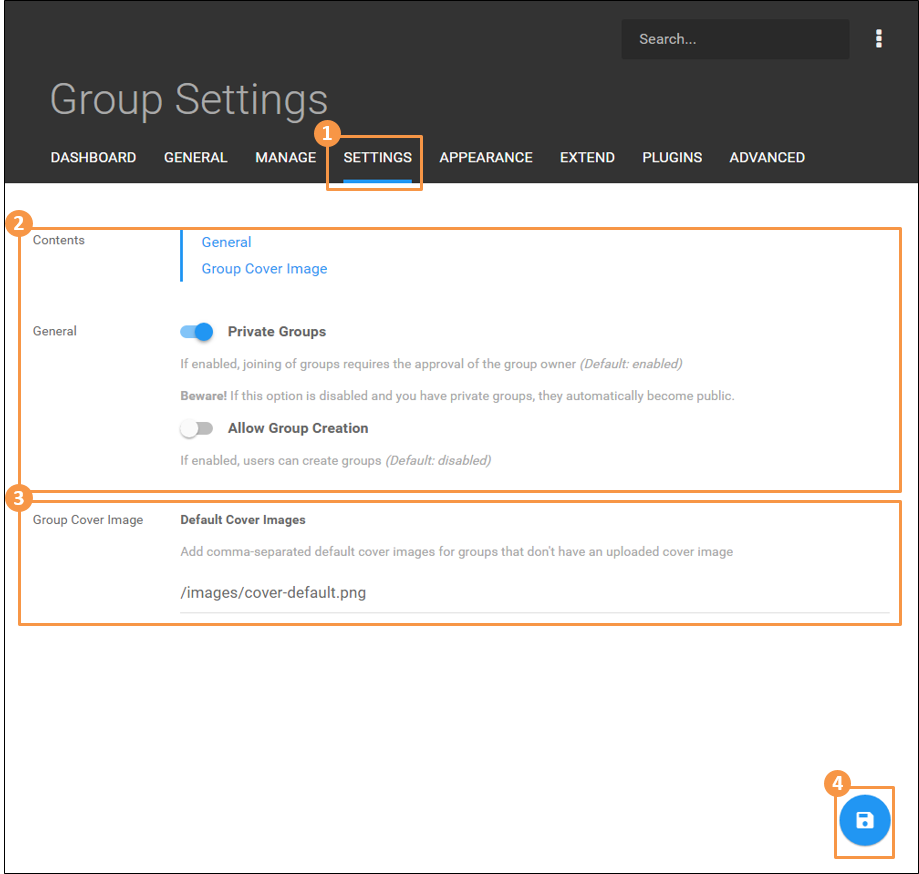
Groups: Group settings

PLEASE NOTE: this screenshot may not match your current NodeBB installation

1) Settings > Groups

  • Click SETTINGS on the top navigation to reveal the drop-down menu, then click Groups.

2) General Settings

  • Includes these toggles:
    • Private Groups
      • If enabled, joining of groups requires the approval of the group owner. This is enabled by default.  NOTE: If this option is disabled, any private groups will automatically become public.
    • Allow Group Creation
      • If enabled, users can create groups (Default: disabled)

3) Group Cover Images

  • Allows a default cover image to be defined for groups who do not upload their own.

4) Save changes

  • The ‘disk’ button at the bottom of the page saves any changes. Changes that are not saved will be discarded after leaving this page.
View on community.nodebb.org
0
0
0
0
Open post
jay-moonah
Jay Moonah
@jay-moonah@community.nodebb.org

Hi! I'm the Director of Marketing & Sales for NodeBB. If you have any questions, please feel free to contact me at sales@nodebb.org .

community.nodebb.org
Jay Moonah
Jay Moonah
@jay-moonah@community.nodebb.org

Hi! I'm the Director of Marketing & Sales for NodeBB. If you have any questions, please feel free to contact me at sales@nodebb.org .

community.nodebb.org
@jay-moonah@community.nodebb.org · May 31, 2023

Groups: Group attributes

PLEASE NOTE: this screenshot may not match your current NodeBB installation

1) Group attributes page

These attributes can be edited for each Group:

  • Name

  • Description

  • Title of Members

    • Appears on the group badge for each member
  • Group Icon

    • Can be changed by clicking and selecting a new icon
  • Group Label Color

    • Can be changed by clicking and selecting from the color picker or entering a hex code
  • Checkboxes to:

    • Show member badge
    • Make group private
    • Disable join requests
    • Hide group from listing
  • Add Users to Group

    • Users can be searched by username and added
  • Member list

    • Members can have group ownership added or rescinded, or be kicked (removed) from the group.

2) Group Control Panel

Controls for Saving changes made to group settings, or reverting to previous settings.

View on community.nodebb.org
0
0
0
0
Open post
jay-moonah
Jay Moonah
@jay-moonah@community.nodebb.org

Hi! I'm the Director of Marketing & Sales for NodeBB. If you have any questions, please feel free to contact me at sales@nodebb.org .

community.nodebb.org
Jay Moonah
Jay Moonah
@jay-moonah@community.nodebb.org

Hi! I'm the Director of Marketing & Sales for NodeBB. If you have any questions, please feel free to contact me at sales@nodebb.org .

community.nodebb.org
@jay-moonah@community.nodebb.org · May 31, 2023

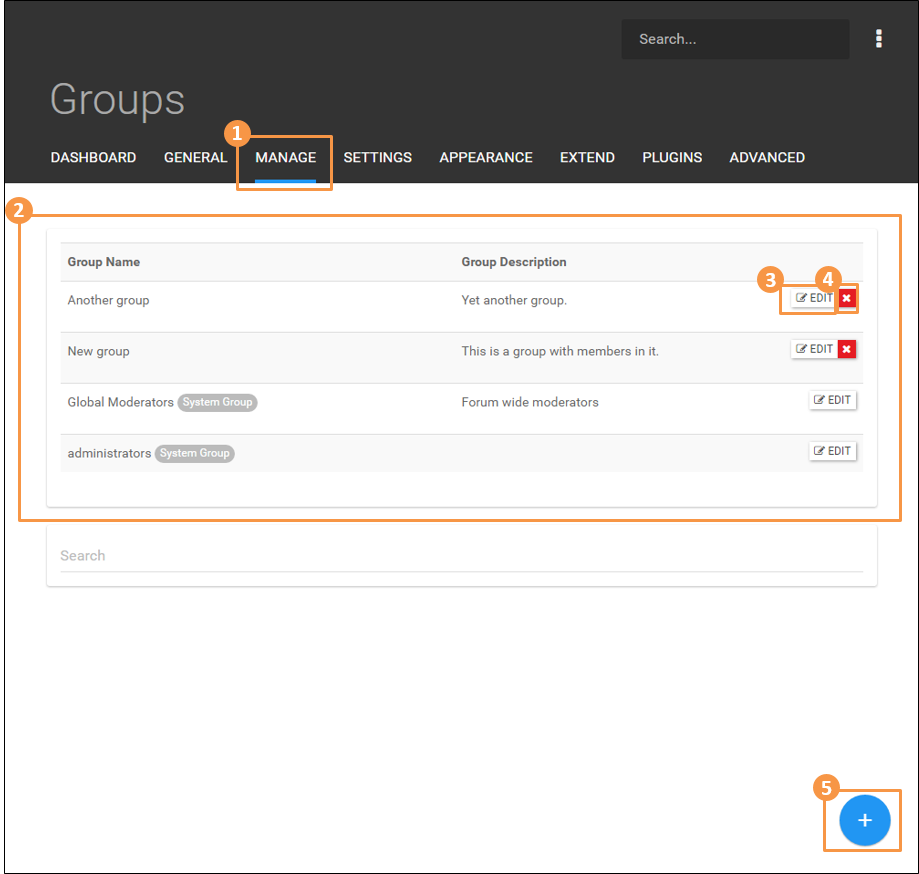
Groups: Group management

PLEASE NOTE: this screenshot may not match your current NodeBB installation

1) Manage > Groups

  • Click MANAGE on the top navigation to reveal the drop-down menu, then click Groups.

2) Groups List

  • The Groups List content area displays a scrolling list of all groups.

3) Edit Button

  • The EDIT opens the settings page for that group

4) Delete Button

  • The red ‘X’ deletes the group.

5) Add Group

  • The ‘plus sign’ button at the bottom of the page is used to create a new group.
View on community.nodebb.org
0
0
0
0
Open post
jay-moonah
Jay Moonah
@jay-moonah@community.nodebb.org

Hi! I'm the Director of Marketing & Sales for NodeBB. If you have any questions, please feel free to contact me at sales@nodebb.org .

community.nodebb.org
Jay Moonah
Jay Moonah
@jay-moonah@community.nodebb.org

Hi! I'm the Director of Marketing & Sales for NodeBB. If you have any questions, please feel free to contact me at sales@nodebb.org .

community.nodebb.org
@jay-moonah@community.nodebb.org · May 31, 2023

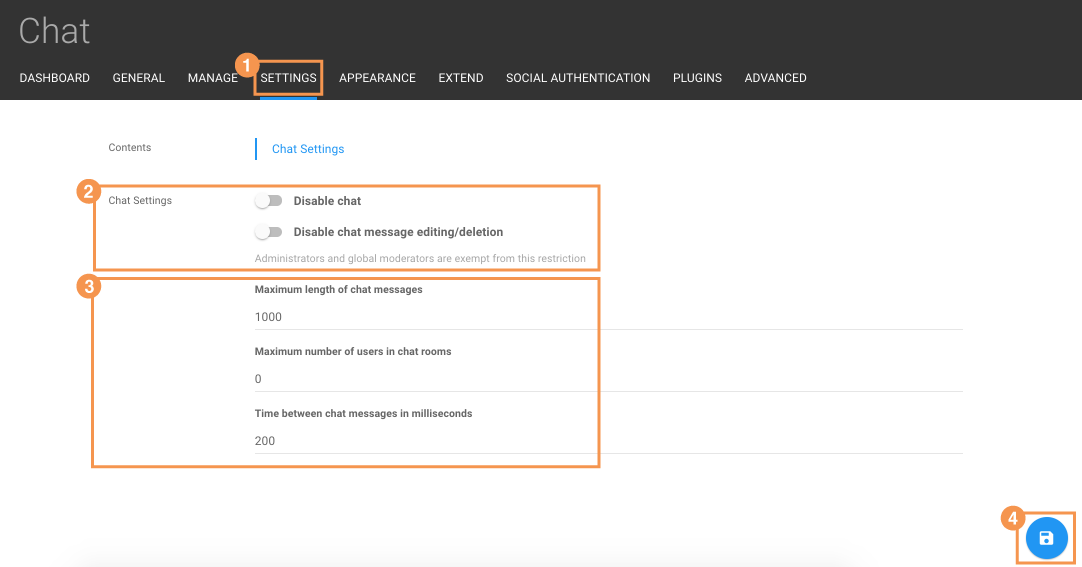
Forum features: Chat settings

PLEASE NOTE: this screenshot may not match your current NodeBB installation

1) Settings > Chat

  • Click on SETTINGS on the top navigation menu and then click on CHAT

2) Chat Settings

  • This section includes these toggles:
    • Disable chat function
      • Toggle this setting to on to turn off the chat function.
    • Disable chat message editing/deletion
      • Toggle this setting to on to prevent users from editing and deleting their chat messages.

3) Additional Chat Settings

  • This section includes these options:
    • Maximum Length of Chat Messages
      • This section allows a maximum character limit to be specified for chat messages.
      • The default is 1000 characters.
    • Maximum Number of Users in Chat Rooms
      • Specifying a maximum number of users will prevent chats from exceeding this amount.
    • Time Between Chat Messages in Milliseconds
      • Specifying a time between messages (in milliseconds) will ensure that there is a minimum wait time between chat messages.

4) Save

Click the save icon to ensure that all of your changes remain once you leave this page.

View on community.nodebb.org
0
0
0
0
Open post
jay-moonah
Jay Moonah
@jay-moonah@community.nodebb.org

Hi! I'm the Director of Marketing & Sales for NodeBB. If you have any questions, please feel free to contact me at sales@nodebb.org .

community.nodebb.org
Jay Moonah
Jay Moonah
@jay-moonah@community.nodebb.org

Hi! I'm the Director of Marketing & Sales for NodeBB. If you have any questions, please feel free to contact me at sales@nodebb.org .

community.nodebb.org
@jay-moonah@community.nodebb.org · May 31, 2023

Forum features: Polls feature

NodeBB does not have built-in polls, but these are available via a free plugin.

View on community.nodebb.org
0
0
0
0
Open post
jay-moonah
Jay Moonah
@jay-moonah@community.nodebb.org

Hi! I'm the Director of Marketing & Sales for NodeBB. If you have any questions, please feel free to contact me at sales@nodebb.org .

community.nodebb.org
Jay Moonah
Jay Moonah
@jay-moonah@community.nodebb.org

Hi! I'm the Director of Marketing & Sales for NodeBB. If you have any questions, please feel free to contact me at sales@nodebb.org .

community.nodebb.org
@jay-moonah@community.nodebb.org · May 31, 2023

Forum features: Uploading rich media

You can allow forum members to embed images in their posts and upload other media as attachments. Several plugins exist that allow users to embed most media directly into the post itself, from video services such as YouTube, Daily Motion, Vimeo, etc., music streaming services such as SoundCloud, and even snippets of web content from sites such as Wikipedia.

View on community.nodebb.org
0
0
0
0
Open post
jay-moonah
Jay Moonah
@jay-moonah@community.nodebb.org

Hi! I'm the Director of Marketing & Sales for NodeBB. If you have any questions, please feel free to contact me at sales@nodebb.org .

community.nodebb.org
Jay Moonah
Jay Moonah
@jay-moonah@community.nodebb.org

Hi! I'm the Director of Marketing & Sales for NodeBB. If you have any questions, please feel free to contact me at sales@nodebb.org .

community.nodebb.org
@jay-moonah@community.nodebb.org · May 31, 2023

Forum features: Language support

NodeBB is currently being translated into 65 languages, including English, French, Spanish, German, Italian, Chinese, Korean, Japanese and many others.

  1. Open the administrative dashboard using the 'gear' icon on your forum.
  2. Go to the General > Language.
  3. Select language in the dropdwn menu under Default Language.
  4. Click the Save settings button at the bottom of the screen.
View on community.nodebb.org
0
0
0
0
Open post
jay-moonah
Jay Moonah
@jay-moonah@community.nodebb.org

Hi! I'm the Director of Marketing & Sales for NodeBB. If you have any questions, please feel free to contact me at sales@nodebb.org .

community.nodebb.org
Jay Moonah
Jay Moonah
@jay-moonah@community.nodebb.org

Hi! I'm the Director of Marketing & Sales for NodeBB. If you have any questions, please feel free to contact me at sales@nodebb.org .

community.nodebb.org
@jay-moonah@community.nodebb.org · May 31, 2023

Forum features: Designating Admins and Moderators

NOTE: screenshots may not precisely match your current NodeBB installation

NodeBB allows for an unlimited number of accounts to be designated as one of the following:

  • Administrators have full access to the Admin Control Panel (ACP) as well as all moderation tool
    • CAUTION any user designated as an Administrator has full power, including the ability to remove other admins
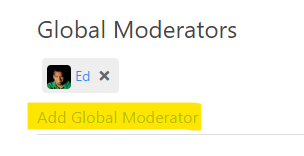
  • Global Moderators have access to moderation tools within all categories of the forum
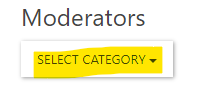
  • Category Moderators have access to moderation tools only within their assigned category or categories

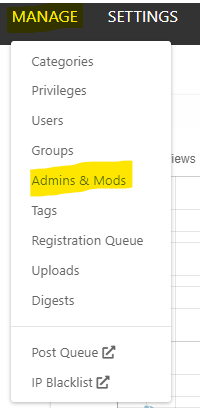
Note that a user must first have a forum account to be an Admin or Moderator. They can then be designated using the Manage > Admins & Mods menu in the ACP.

1675094263102-a2e2509e-3af9-43c8-8b8f-60af15be4199-image.png

To designate an Admin or Mod, simply begin to type their user name in the appropriate "Add..." line. The user should pop up automatically as you begin to type, and can then be selected.

1675094412361-e25b0e38-26fa-489d-a940-54b39dcf6225-image.png

Admin or Mod privileges can be removed via this page by clicking on the X next to the appropriate name, then confirming.

Note that to designate a Category Mod, you must first select the appropriate category from the selection pulldown menu.

1675094534368-6b25a3ae-e8d3-44e2-b883-5268ef4b61ff-image.png

View on community.nodebb.org
0
0
0
0
Open post
jay-moonah
Jay Moonah
@jay-moonah@community.nodebb.org

Hi! I'm the Director of Marketing & Sales for NodeBB. If you have any questions, please feel free to contact me at sales@nodebb.org .

community.nodebb.org
Jay Moonah
Jay Moonah
@jay-moonah@community.nodebb.org

Hi! I'm the Director of Marketing & Sales for NodeBB. If you have any questions, please feel free to contact me at sales@nodebb.org .

community.nodebb.org
@jay-moonah@community.nodebb.org · May 31, 2023

Forum features: Accessing Flagged Content for Moderation

NOTE: screenshots may not precisely match your current NodeBB installation

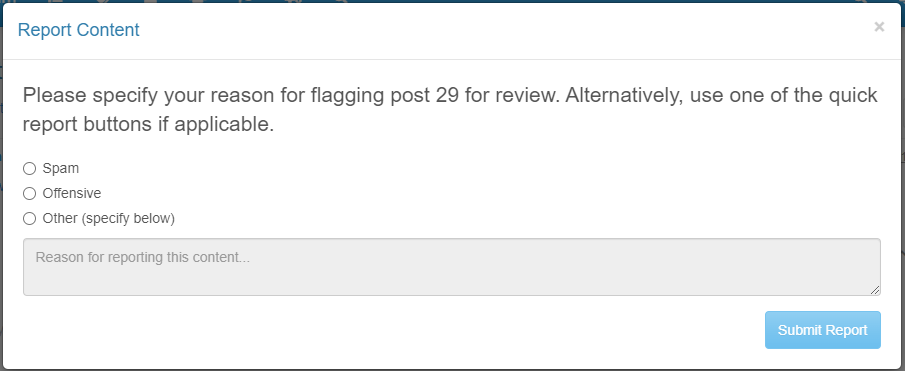
Within a NodeBB forum, users are able to flag content for moderation. Users are able to specify why they believe a particular post should be flagged.

1675099610961-649be59b-550d-41b8-ae56-cb08ce840d77-image.png

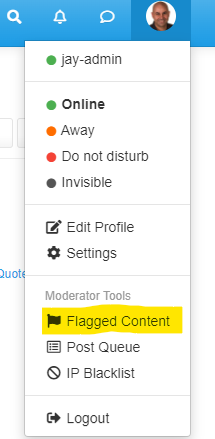
Once flagged, a post will appear within the Flagged Content control panel, which is accessible to Administrators and Moderators. Flagged Content can be opened for these users by clicking on their profile image, which typically appears in the top right corner of the screen on most forums.

1675099809144-6d20d067-1f3a-4f70-8c40-62472fc92d3e-image.png

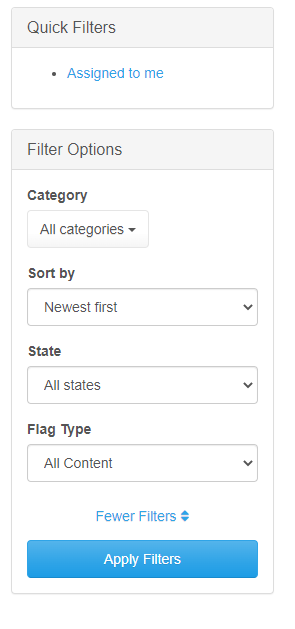
The Flagged Content defaults to showing most recently flagged content, but may be sorted and filtered via the options on the left of the screen.

1675100128329-4642d0a3-ae1c-42ee-b06e-23d1bdb5ffa8-image.png

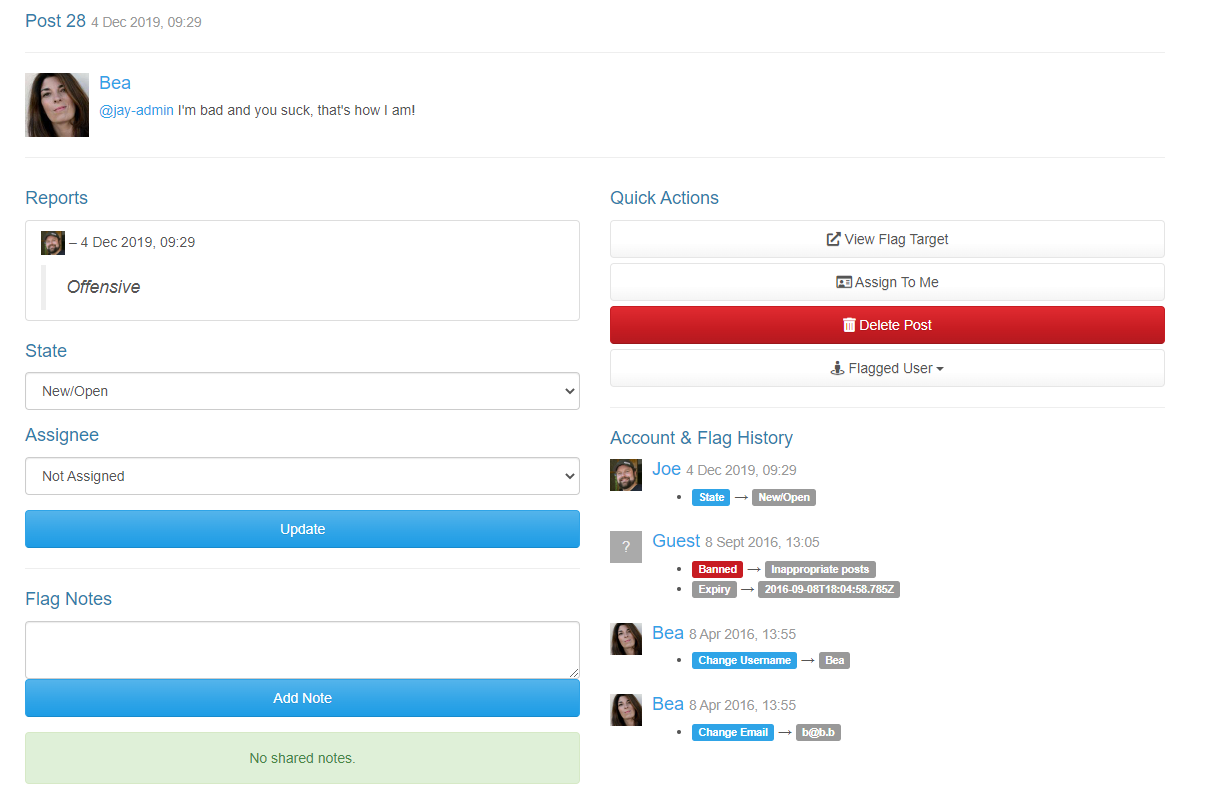
Individual posts include information and a number of possible actions that may be taken.

1675100255273-3085ee75-88cc-4ffe-ab5b-57cf8cb6efd3-image.png

A flag's State may be used to filter flagged content, and allows other Mods to see the current state of action. Possible flag States include:

  • New/Open
  • Work in Progress
  • Resolved
  • Rejected

Flags may be assigned to a individual Mod, who will receive a notification. Notes can view by other Mods. Mods can also see a history of the actions taken with regard to this flag.

Moderation actions include:

  • Delete Post
  • Message the poster via chat
  • Ban the account temporarily, in a time period set in either hours or days
  • Ban the account permanently
  • Mute the account temporarily (muted users can view forum content but not post or communicate via chat)
  • Permanently remove the user's content but leave the user account in place
  • Permanently remove the user
  • Permanently remove the user and their content
View on community.nodebb.org
0
0
0
0
Open post
jay-moonah
Jay Moonah
@jay-moonah@community.nodebb.org

Hi! I'm the Director of Marketing & Sales for NodeBB. If you have any questions, please feel free to contact me at sales@nodebb.org .

community.nodebb.org
Jay Moonah
Jay Moonah
@jay-moonah@community.nodebb.org

Hi! I'm the Director of Marketing & Sales for NodeBB. If you have any questions, please feel free to contact me at sales@nodebb.org .

community.nodebb.org
@jay-moonah@community.nodebb.org · May 31, 2023

Categories: Categories and sub-categories

Categories are major topic areas for your forum. New NodeBB sites come with a few default categories, but these can easily be changed or deleted in the Admin panel, under the menu Manage > Categories.

You can add sub-categories to any category. In most NodeBB themes, sub-categories will appear to members as smaller listings in the main category listing, and on the top of the category page.

View on community.nodebb.org
0
0
0
0
Open post
jay-moonah
Jay Moonah
@jay-moonah@community.nodebb.org

Hi! I'm the Director of Marketing & Sales for NodeBB. If you have any questions, please feel free to contact me at sales@nodebb.org .

community.nodebb.org
Jay Moonah
Jay Moonah
@jay-moonah@community.nodebb.org

Hi! I'm the Director of Marketing & Sales for NodeBB. If you have any questions, please feel free to contact me at sales@nodebb.org .

community.nodebb.org
@jay-moonah@community.nodebb.org · May 31, 2023

Categories: Category privileges

PLEASE NOTE: this screenshot may not match your current NodeBB installation

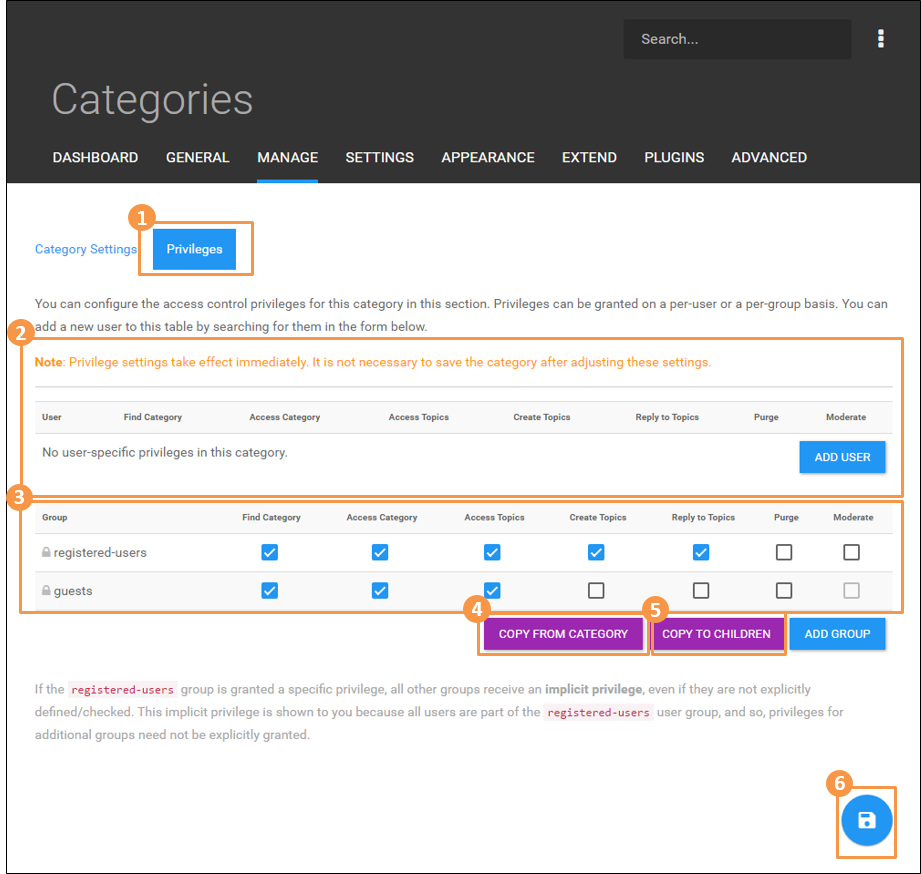
1) Category Privileges

  • Clicking on ‘Edit’ on the previous screen will show the individual category settings page.

2) User Privileges

  • Allows viewing and posting privileges to be defined for an individual users. This will be in addition to any group privileges they may have. Existing users may be added to this list using the “Add User” button.

3) Group Privileges

  • Allows viewing and posting privileges to be defined for groups. Existing groups may be added to this list using the “Add Group” button.

4) Copy from Category

  • Copies privileges from another category.

5) Copy to Children

  • Copies privileges from this category to any child categories, overwriting the privileges for the children.

6) Save changes

  • The ‘disk’ button at the bottom of the page saves any changes made to category settings. Changes not saved will be discarded.
View on community.nodebb.org
0
0
0
0
Open post
jay-moonah
Jay Moonah
@jay-moonah@community.nodebb.org

Hi! I'm the Director of Marketing & Sales for NodeBB. If you have any questions, please feel free to contact me at sales@nodebb.org .

community.nodebb.org
Jay Moonah
Jay Moonah
@jay-moonah@community.nodebb.org

Hi! I'm the Director of Marketing & Sales for NodeBB. If you have any questions, please feel free to contact me at sales@nodebb.org .

community.nodebb.org
@jay-moonah@community.nodebb.org · May 31, 2023

Categories: Category settings

PLEASE NOTE: this screenshot may not match your current NodeBB installation

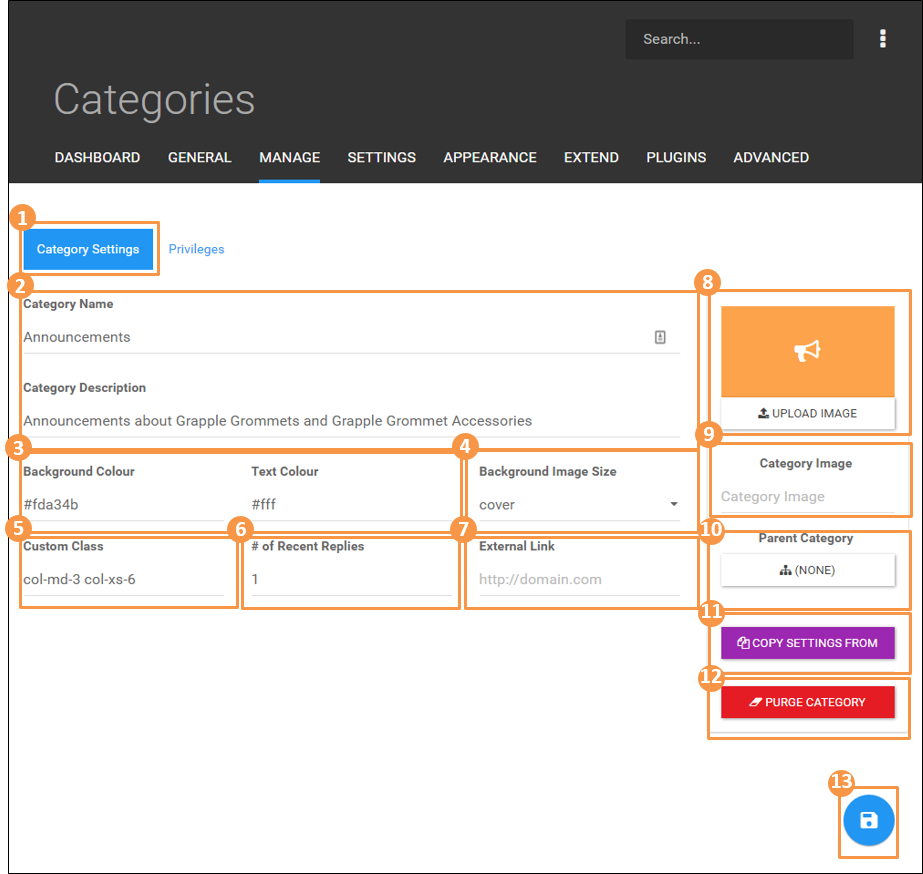
1) Category Settings

  • Clicking on ‘Edit’ on the Categories page will reveal the individual category settings page.

2) Category Name & Description

  • Can be edited by clicking on the text.

3) Background & Text Colors

  • Can be changed by clicking and either entering a hex color code or selecting from a color picker.

4) Background Image Size

  • (Not supported by all themes.) For sizing theme background image.

5) Custom Class

  • Allows custom CSS attributes to be entered.

6) # of Recent Replies

  • Controls the number of recent replies to be displayed.

7) External Link

  • Allows the category link to open an external website in a new browser window.

8 ) Upload Image

  • Allows a new category image to be uploaded from a local computer.

9) Category Image

  • Allows a URL reference to be used in place of the uploaded category image.

10) Parent Category

  • Allows a category to be placed under another as a sub-category.

11) Copy settings from

  • Allows copying settings and privileges from another category.

12) Purge Category

  • Allows all topics and posts in category to be deleted.

13) Save changes

  • The ‘disk’ button at the bottom of the page saves any changes made to category settings. Changes that are not saved will be discarded after leaving this page.
View on community.nodebb.org
0
0
0
0
Open post
jay-moonah
Jay Moonah
@jay-moonah@community.nodebb.org

Hi! I'm the Director of Marketing & Sales for NodeBB. If you have any questions, please feel free to contact me at sales@nodebb.org .

community.nodebb.org
Jay Moonah
Jay Moonah
@jay-moonah@community.nodebb.org

Hi! I'm the Director of Marketing & Sales for NodeBB. If you have any questions, please feel free to contact me at sales@nodebb.org .

community.nodebb.org
@jay-moonah@community.nodebb.org · May 31, 2023

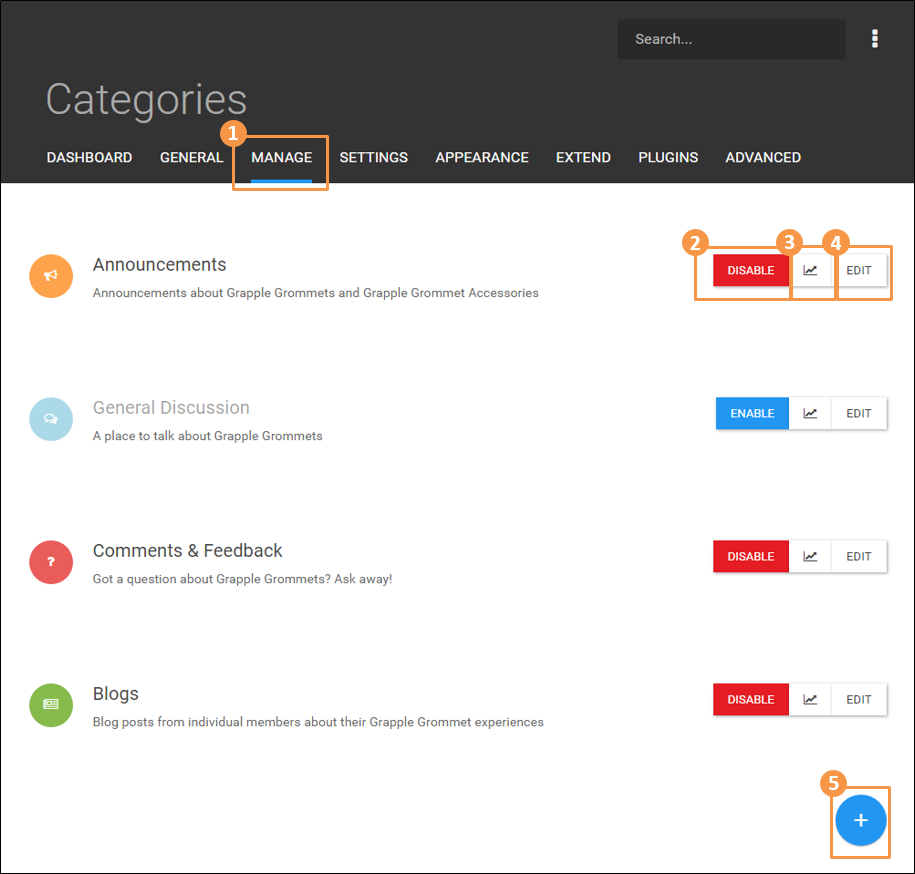
Categories: Managing categories

PLEASE NOTE: this screenshot may not match your current NodeBB installation

1) Manage > Categories

  • Click MANAGE on the top navigation to reveal the drop-down menu, then click Categories.

2) Enable/Disable

  • The first button to the right of each category allows it to be togged between “Disabled” or “Enabled.”

3) Category analytics

  • The ‘chart’ button shows analytics for that category, including numbers of views and posts.

4) Edit category

  • Gives access to settings and privileges for that category (more on next page.)

5) Add category

  • The ‘plus sign’ button at the bottom of the page is used to create a new category.
View on community.nodebb.org
0
0
0
0
Open post
jay-moonah
Jay Moonah
@jay-moonah@community.nodebb.org

Hi! I'm the Director of Marketing & Sales for NodeBB. If you have any questions, please feel free to contact me at sales@nodebb.org .

community.nodebb.org
Jay Moonah
Jay Moonah
@jay-moonah@community.nodebb.org

Hi! I'm the Director of Marketing & Sales for NodeBB. If you have any questions, please feel free to contact me at sales@nodebb.org .

community.nodebb.org
@jay-moonah@community.nodebb.org · May 31, 2023

Categories: Can members choose to only view certain categories?

Members will see all categories that they have permission to see, but they do have the ability to watch/unwatch individual categories. This will determine if new posts/topics show up in their unread listing.

View on community.nodebb.org
0
0
0
0
Open post
jay-moonah
Jay Moonah
@jay-moonah@community.nodebb.org

Hi! I'm the Director of Marketing & Sales for NodeBB. If you have any questions, please feel free to contact me at sales@nodebb.org .

community.nodebb.org
Jay Moonah
Jay Moonah
@jay-moonah@community.nodebb.org

Hi! I'm the Director of Marketing & Sales for NodeBB. If you have any questions, please feel free to contact me at sales@nodebb.org .

community.nodebb.org
@jay-moonah@community.nodebb.org · May 31, 2023

Categories: Creating private groups and categories

You can create private groups for your forum, as well as categories that are only available to those within a particular group.

A category can be hidden to those who are not in a particular group. Access and visibility can be customized for each category, for example some categories could be readable by general users but only those in a particular group could post to it.

Categories that are hidden from a particular user simply do not show up in their view of the forum.

View on community.nodebb.org
0
0
0
0
Open post
jay-moonah
Jay Moonah
@jay-moonah@community.nodebb.org

Hi! I'm the Director of Marketing & Sales for NodeBB. If you have any questions, please feel free to contact me at sales@nodebb.org .

community.nodebb.org
Jay Moonah
Jay Moonah
@jay-moonah@community.nodebb.org

Hi! I'm the Director of Marketing & Sales for NodeBB. If you have any questions, please feel free to contact me at sales@nodebb.org .

community.nodebb.org
@jay-moonah@community.nodebb.org · May 31, 2023

Appearance and Design: Changing the appearance of your NodeBB forum

To begin, open the administrative dashboard using the 'gear' icon on your forum, and click the 'Appearance' menu.

NodeBB uses two main design concepts: the 'Theme', which defines the overall layout of forum topics and messages, and the 'Skin', which defines fonts and colors. Themes and Skins may be applied in different combinations to give your forum a unique look.

Themes

This forum is currently using the theme known as Persona. Here's a quick look at what the homepage, topic pages and messages look like using this particular theme.

By applying a different theme such as Vanilla, these different layout elements can be changed immediately. Note that selecting a different theme will require a restart of your forum, which can be done by going to the Dashboard menu, and Selecting Restart on the right.

After restarting, the forum homepage, topic view and messages are now all changed to match the Vanilla theme.

Skins

In addition to changing the layout with a different Theme, different colors and fonts can also be changed by applying a different Skin. NodeBB has a number of built in Skins, and unlike changing Themes, switching Skins does not require a forum restart: simply select the Skin you like, and view your forum to see how it looks. If you don't see the change right away, try refreshing your browser.

Custom CSS and HTML

Individual elements in NodeBB can be further styled by using the 'Custom CSS and HTML' menu. This requires some coding expertise, but it does provide a way to customize your forum even further.

YouTube Changing the appearance of your NodeBB forum

View on community.nodebb.org
Changing the appearance of your NodeBB forum
YouTube

Changing the appearance of your NodeBB forum

NodeBB Inc.

0
0
0
0
Open post
jay-moonah
Jay Moonah
@jay-moonah@community.nodebb.org

Hi! I'm the Director of Marketing & Sales for NodeBB. If you have any questions, please feel free to contact me at sales@nodebb.org .

community.nodebb.org
Jay Moonah
Jay Moonah
@jay-moonah@community.nodebb.org

Hi! I'm the Director of Marketing & Sales for NodeBB. If you have any questions, please feel free to contact me at sales@nodebb.org .

community.nodebb.org
@jay-moonah@community.nodebb.org · May 31, 2023

Appearance and Design: Adding a logo and favicon

Your logo can been added as both an image within the main header of your forum and as a 'favicon' which will appear within the browser address bar, tab or or next to the site name in bookmarks.

  1. To start, you'll need a square version of your logo in JPEG or PNG format.
  2. Open the administrative dashboard using the 'gear' icon on your forum
  3. Then go to the Settings > General menu.
  4. Scroll down until you see Site Logo on the left side.  Right of this is a button to upload your logo.
  5. Below that, you can add a URL link for the logo .
  6. When you are done, be sure to click the Save settings button at the bottom of the screen.

Add a favicon using the same logo image

Convert your logo into ICO format, which is a standard used by web browsers and other programs for icon images. There are a number of free online converters that will do this, such as favicon-generator.org. This site allows you to create a number of different types of icon files, but in this case we will only need a 16 x 16 version which is standard for the web. Make this selection, and then upload your logo. The site will convert this into a favicon that you can download and save.

Return to your forum settings and upload your new favicon, and then save settings again.

Your logo will now be featured on your forum, both on the page and within the browser.

YouTube Adding a logo and favicon for your NodeBB forum

View on community.nodebb.org
0
0
0
0
Open post
jay-moonah
Jay Moonah
@jay-moonah@community.nodebb.org

Hi! I'm the Director of Marketing & Sales for NodeBB. If you have any questions, please feel free to contact me at sales@nodebb.org .

community.nodebb.org
Jay Moonah
Jay Moonah
@jay-moonah@community.nodebb.org

Hi! I'm the Director of Marketing & Sales for NodeBB. If you have any questions, please feel free to contact me at sales@nodebb.org .

community.nodebb.org
@jay-moonah@community.nodebb.org · May 31, 2023

Admin Control Panel: Activating search feature

NodeBB comes with a built-in search plugin known as DB Search. This is a simple full text search that will work well for most forums.

  1. Open the administrative dashboard using the 'gear' icon on your forum.
  2. Go to Plugins > Install Plugins.
  3. From the Installed tab, type dbsearch into the search.
  4. Select activate.
  5. Note that you need to restart your forum, which can be done from the dashboard.

If your forum has existing posts, you'll want to make sure these are indexed for search. After restart, select Plugins > DB Search, and hit the Reindex button. You should only need to do this once, since any new posts will automatically be added to the index.

Note that a direct link to the advanced search can be added to your forum by going to the General > Navigation menu in admin.  From here, you can select options for this link, including limiting it to only certain users.

YouTube Activating search for your NodeBB forum

View on community.nodebb.org
Activating search for your NodeBB forum
YouTube

Activating search for your NodeBB forum

NodeBB Inc.

0
0
0
0
Open post
jay-moonah
Jay Moonah
@jay-moonah@community.nodebb.org

Hi! I'm the Director of Marketing & Sales for NodeBB. If you have any questions, please feel free to contact me at sales@nodebb.org .

community.nodebb.org
Jay Moonah
Jay Moonah
@jay-moonah@community.nodebb.org

Hi! I'm the Director of Marketing & Sales for NodeBB. If you have any questions, please feel free to contact me at sales@nodebb.org .

community.nodebb.org
@jay-moonah@community.nodebb.org · May 31, 2023

Admin Control Panel: Accommodating search optimization/SEO

NodeBB provides global controls for title tags and metadata via the Settings > General menu. There are also category-specific settings that can be customized by category if desired.

Custom metadata tags can also be added via the Appearance > Customize > Custom Content (HTML/JS/CSS) menu.

View on community.nodebb.org
0
0
0
0
Open post
jay-moonah
Jay Moonah
@jay-moonah@community.nodebb.org

Hi! I'm the Director of Marketing & Sales for NodeBB. If you have any questions, please feel free to contact me at sales@nodebb.org .

community.nodebb.org
Jay Moonah
Jay Moonah
@jay-moonah@community.nodebb.org

Hi! I'm the Director of Marketing & Sales for NodeBB. If you have any questions, please feel free to contact me at sales@nodebb.org .

community.nodebb.org
@jay-moonah@community.nodebb.org · May 31, 2023

Admin Control Panel: Force User Login

Hide content from non-logged in users and redirect them to the login page.

  1. Log into your forum as an Admin

  2. Open the Admin Control Panel, you can do this via the gears icon or by appending "/admin" to your forum URL

  3. Open the "Appearance > Custom Content (HTML/JS/CSS)" page

  4. Select the Custom Javascript tab

  5. Paste in the following code:

    $(document).ready(function () {
        function redirectAnon () {
            if (!app.user.uid && document.location.pathname !== '/login') {
                document.location = config.relative_path + '/login';
            }
        }
        
        $(window).on('action:ajaxify.end', redirectAnon);
        redirectAnon();
    });​
    
  6. Click the Diskette icon to the bottom right of the page to save

  7. Select the Dashboard menu

  8. Restart your NodeBB instance

View on community.nodebb.org
0
0
0
0

Media

313k7r1n3

Company

  • About
  • Contact
  • FAQ

Legal

  • Terms of Service
  • Privacy Policy
  • VPN Policy

Email Settings

IMAP: mail.elektrine.com:993

POP3: pop3.elektrine.com:995

SMTP: mail.elektrine.com:465

SSL/TLS required

Support

  • support@elektrine.com
  • Report Security Issue

Connect

Tor Hidden Service

khav7sdajxu6om3arvglevskg2vwuy7luyjcwfwg6xnkd7qtskr2vhad.onion
© 2026 Elektrine. All rights reserved. • Server: 15:06:17 UTC